



A sale price on a product page is only one part of a working promotion. Visitors may arrive through a translated landing page, see cached copy, add a coupon and complete checkout on a small screen.
This WooCommerce sale launch checklist treats the offer as a complete journey. It covers the commercial rule, the scheduled window and the evidence needed to confirm that the normal price returns afterwards.
Write the offer as a testable rule
Record the eligible product or variation, ordinary price, promotional price, start date, end date and time zone. State whether the final day is included. “Ends on Monday” is too ambiguous for a configuration handover.
Use an explicit boundary such as “starts at 00:00 on 20 November; ends immediately before 00:00 on 1 December; Europe/Rome”. Then confirm how the installed WooCommerce editor represents the last sale day. Do not assume that a displayed date field and a custom countdown use the same time zone.
Assign one release owner through the agency site operations checklist. The offer should have one agreed specification even if different people edit the product, announcement and checkout.
Separate product discounts from other amounts
Write down which amount receives the discount. Product price, shipping, taxes and separately configured fees are different parts of the order. A promise of half-price software does not automatically mean half of every line at checkout.
For a hypothetical €200 product discounted by 50%, the promotional product amount is €100. If the offer explicitly leaves a €2 fixed charge unchanged, the combined amount is €102 before any other applicable components. Verify the actual store rules rather than copying this arithmetic into a different tax setup.
Keep the commercial wording aligned with the checkout. If a mandatory charge remains payable, show it clearly wherever the total is explained. Ask the store's responsible owner to confirm the applicable tax and fee configuration.
Check the product configuration
In the installed product editor, compare the regular price, sale price and scheduled dates with the approved specification. For variable products, inspect the relevant variations: a parent-level display can conceal a variation that has a different price.
WooCommerce documents the relevant controls in its product editor settings. Follow the interface actually installed on the site and save a record of the resulting configuration.
For a temporary offer, avoid overwriting the regular price merely to make a discount look correct. Keep the return price identifiable. Also compare one-time and annual licence costs when explaining longer-term purchasing decisions.
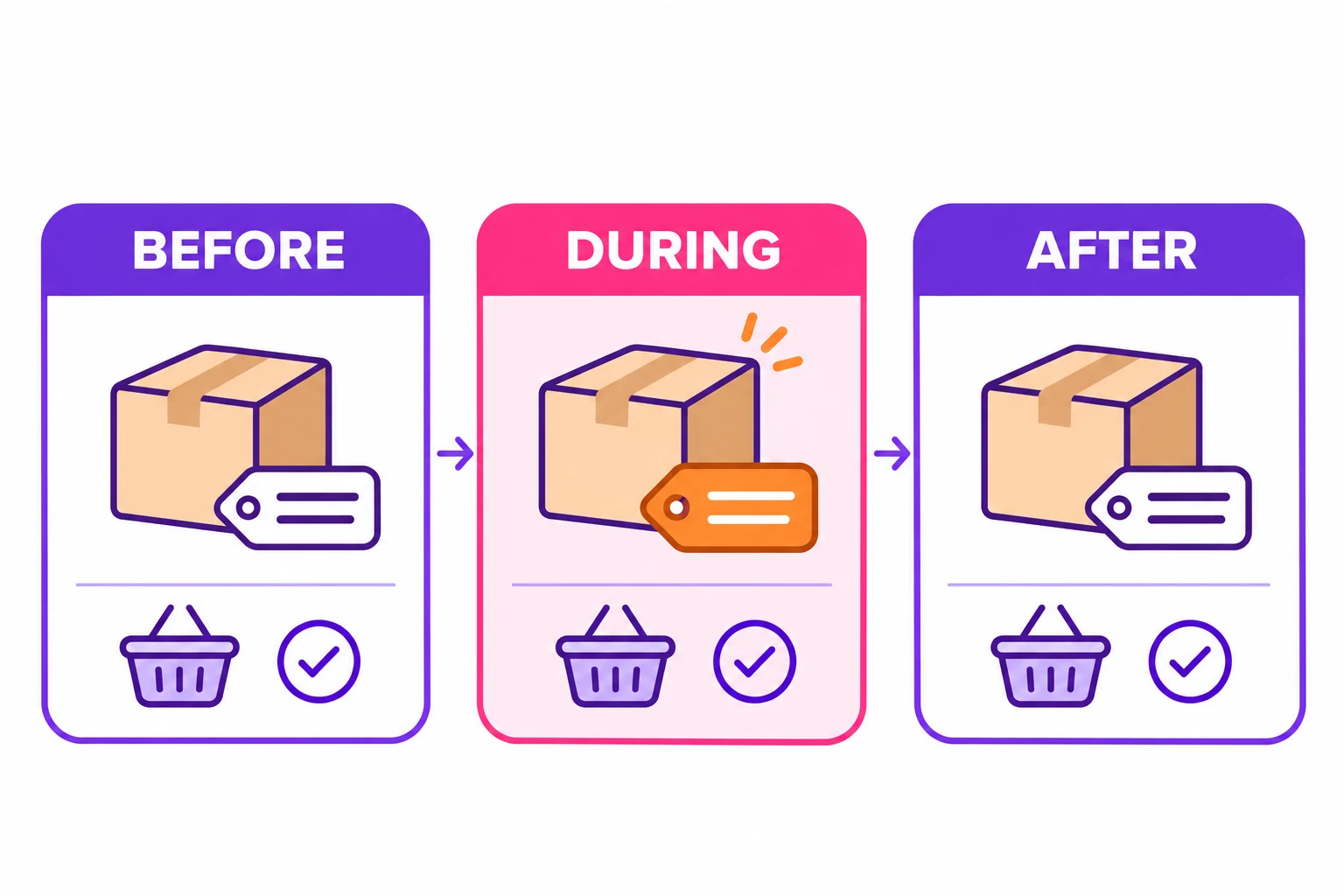
Test three states, not just launch day
Use an isolated test environment or a controlled test of the campaign logic to examine dates that have not occurred yet. Do not change the production server clock to simulate a promotion.
| Check | Before start | During offer | After end |
|---|---|---|---|
| Product | Regular price | Approved sale price | Regular price restored |
| Cart and checkout | Normal totals | Discount and charges correct | New calculations use normal price |
| Announcement | Future-tense dates | Active offer wording | Removed or clearly expired |
| Countdown | Hidden or clearly labelled | Counts to the correct end | Stops without a false offer |
| Coupon attempt | Ordinary policy | Approved combination policy | Ordinary policy |
 AI illustration
Record whether each result came from a live check, a staging simulation or a code-level boundary test. A successful simulation supports readiness; it is not evidence that the future production transition has already happened.
Check cache and language routes
Review the product page, campaign landing page, header bar and any translated versions. A price calculation may update while a cached promotional sentence remains stale.
Check the relevant cache configuration and purge the affected pages after the change. Use a fresh visitor view as well as the administrator view, because logged-in users may bypass caches. Check that language switching reaches an existing destination rather than an old translated slug.
Keep cart and checkout behaviour consistent with the store's supported cache exclusions. An attractive cached page is not proof that customer-specific totals are correct.
Exercise coupons and the mobile checkout
Test the combinations the business allows, including a rejected coupon if the campaign excludes stacking. WooCommerce's coupon management documentation explains the available restrictions; additional discount plugins can alter the result and need separate checks.
On mobile, inspect the cart-to-checkout button, quantity controls, required fields, error messages and final total. A visible button must lead to the correct checkout route and remain usable without an overlay covering it.
Use an authorised sandbox or test gateway for payment tests. If you only checked navigation and totals, record that limitation rather than claiming a completed payment.
Prepare the end of the offer
Follow a controlled release sequence for any campaign code. Record the return price, cache action, banner behaviour and person responsible for investigating a missed transition.
Before sign-off, keep the offer specification, configuration screenshots, test matrix and unresolved issues together. The acceptance result should say exactly what was checked and what still depends on the scheduled transition. That gives the store a usable launch record and an equally clear closing checklist.