



A public visitor, customer, editor and administrator rarely need the same navigation. Showing every destination to everyone creates clutter; maintaining a separate menu for every state creates duplicated work.
Conditional WordPress menus by user role can keep navigation relevant, but visibility rules must not be confused with security. Hiding a menu item does not prevent direct access to its URL.
This guide explains how agencies can design maintainable menu conditions for logged-out users, logged-in users and selected WordPress roles.
Separate navigation from authorisation
WordPress roles group capabilities that determine what logged-in users can do. Proper application code should check the required capability before exposing protected data or actions.
A menu rule changes whether a link is shown. It improves wayfinding and reduces irrelevant choices. It must not be the only control protecting an account, report, download or administration function.
Use both layers:
- navigation condition for relevance;
- server-side capability or access check for security.
Map audiences before creating rules
List the real visitor states, for example:
- logged-out visitor;
- logged-in customer or subscriber;
- contributor or author;
- editor;
- administrator;
- custom membership or commerce role.
For each destination, record who should see the link and who is authorised to open the destination.
Do not assume role names form a simple hierarchy. WordPress describes roles as collections of responsibilities and capabilities; custom roles may not follow the default order.
Use a simple rule hierarchy
Prefer the least complex rule that works:
- All users for universal navigation.
- Logged-out only for sign-in, registration or public conversion routes.
- Logged-in only for account-level navigation shared by authenticated users.
- Specific roles where the destination serves a defined responsibility.
- Exclude selected roles only when exclusion is easier to maintain than a positive list.
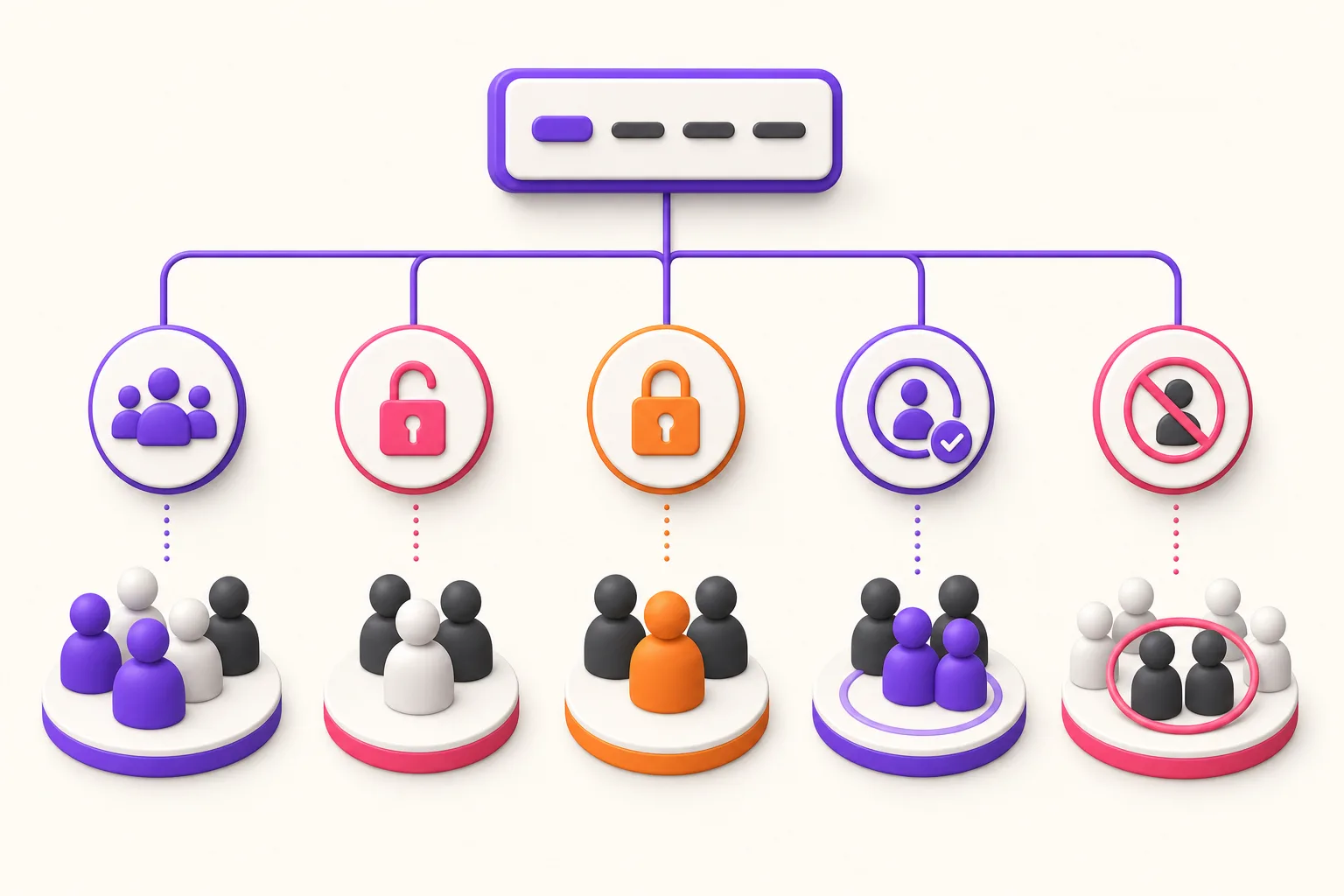
Positive rules are usually easier to explain. “Show to customers and editors” is clearer than a long exclusion list whose future custom roles may behave unexpectedly.
Common navigation patterns
Sign in and account
Show “Sign in” to logged-out visitors and “My account” or “Sign out” to authenticated users.
Editorial workspace
Show content-management shortcuts only to appropriate editorial roles, while the destination still checks capabilities.
Customer resources
Show account, order or download navigation to the relevant customer role. Protect the underlying data independently.
Agency and client administration
Keep operational links out of ordinary customer navigation and avoid granting Administrator merely to make a link visible.
Avoid rule duplication
Before adding a new condition, check whether the menu already inherits logic from the theme, membership plugin, commerce system or custom code.
Multiple visibility systems can conflict and make troubleshooting difficult. Choose one owner for each menu item’s condition and document exceptions.
Account for page caching
Some full-page caches store different versions for logged-in and logged-out users; others bypass caching for authenticated sessions. A misconfigured cache can expose stale navigation or show the wrong menu state even when the underlying destination remains protected.
After changing conditional items:
- purge the relevant caches;
- test a clean logged-out session;
- test representative logged-in roles;
- move between login and logout without reusing an old page snapshot;
- verify mobile and desktop menu variants;
- confirm the protected destination still checks authorisation.
Treat incorrect cached navigation as a user-experience defect and investigate the cache variation rules rather than weakening the access control.
Test every state
Create a matrix:
| State | Expected visible items | Protected destinations tested? |
|---|---|---|
| Logged out | Public and sign-in routes | Yes |
| Subscriber/customer | Account and customer routes | Yes |
| Editor | Editorial routes | Yes |
| Administrator | Operational routes | Yes |
| Custom role | Explicit approved routes | Yes |
Test with real non-administrator accounts. Administrators often bypass restrictions or see controls that ordinary users do not.
Also test:
- desktop and mobile menu renderings;
- keyboard navigation and focus;
- caching for logged-in and logged-out pages;
- translated menu labels and destinations;
- changes after login and logout;
- direct URL access for unauthorised users.
The menu may render differently on mobile, but WpAgencyKit Menu Conditions’ visibility rules are based on login state and roles. Device preview and mobile modal behaviour should not be described as device-based menu security or visibility.
Use modals carefully
Opening a WordPress page or post in a modal can keep a user in context. Dynamic forms or complex JavaScript need live behaviour, while static content may be suitable for prerendering.
Remote sites often prevent iframe embedding through security headers. Use a normal same-page or new-tab route when the destination cannot be embedded reliably.
Accessibility checks should include focus entry, escape/close behaviour, labelling, keyboard operation and focus restoration.
Configure WpAgencyKit Menu Conditions
WpAgencyKit Menu Conditions adds per-menu-item controls for:
- all users;
- logged-in users;
- logged-out users;
- selected roles;
- exclusion of selected roles;
- same-page, new-tab or modal opening behaviour where appropriate.
Use these features to reduce duplicated menus while retaining WordPress capability checks on protected destinations.
Maintenance checklist
- review conditional items after adding or removing roles;
- test with representative user accounts;
- confirm unauthorised direct access is blocked;
- review caching behaviour;
- check mobile and keyboard navigation;
- update translated menu labels and URLs;
- document which system owns each visibility rule;
- remove conditions for retired destinations;
- include navigation tests in membership or account releases.
Make navigation relevant without weakening access control
Conditional menus are a user-experience tool. They help each audience find the right path and reduce the need for duplicated navigation structures.
Keep the rules simple, test real user states and enforce security at the destination. When those responsibilities remain separate, agencies can personalise navigation without creating false protection.